> ## Documentation Index
> Fetch the complete documentation index at: https://docs.revoscripts.com/llms.txt
> Use this file to discover all available pages before exploring further.
# How to Install
> Step-by-step guide to installing your purchased Revo Script using the FiveM Escrow system.
Make sure you're logged into the correct Cfx.re account (the one used to purchase the script), and your server uses a matching license key.
1. Visit the Cfx.re Keymaster.
2. Log in using the account that made the purchase.
3. Go to the Granted Assets tab.
4. Find the Revo Script you purchased and click Download.
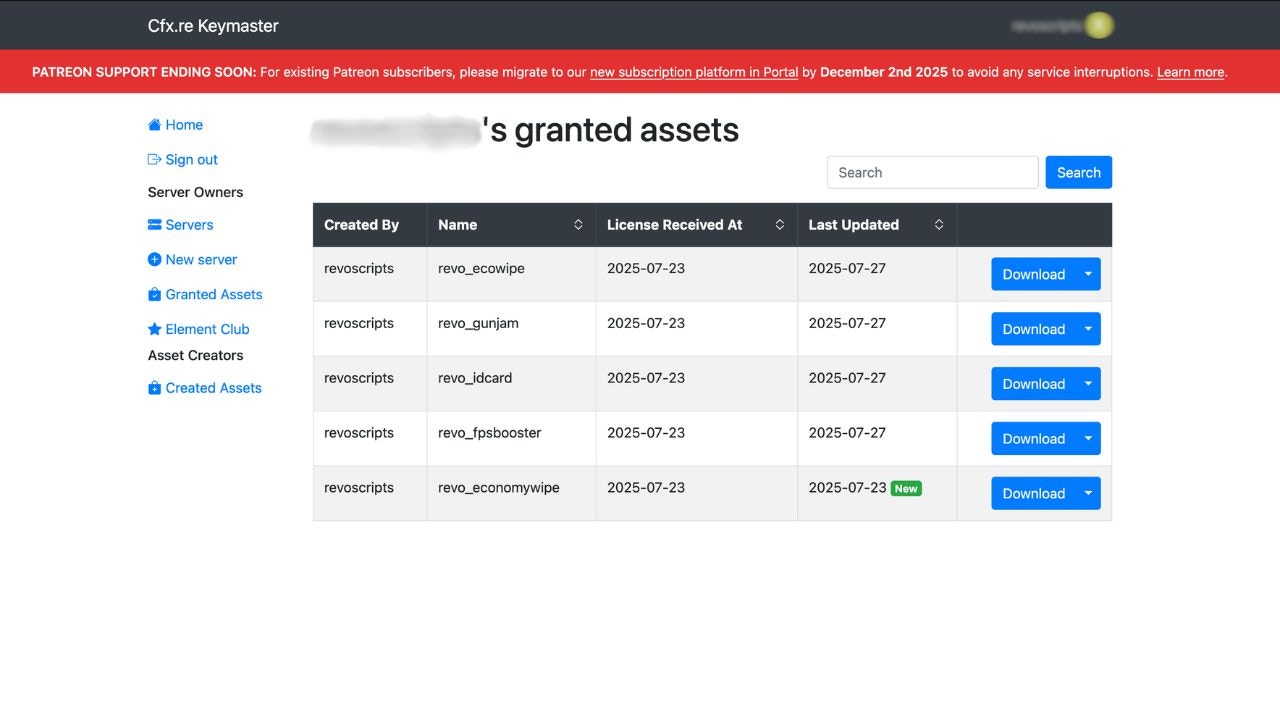 * Extract the
 .pack .zip file you downloaded.
* Inside the extracted folder, you’ll find a folder like revo-stocktrading or similar.
Do not rename the script folder (e.g., revo-stocktrading) — this will break escrow validation.
Move the script folder (located inside the extracted bundle folder) into your server’s resources directory.
```bash theme={null}
/resources/[revo]/[script-name]
```
You may organize Revo scripts under a \[revo] folder.
In your server.cfg, ensure the script is loaded by adding:
```bash theme={null}
cfg
ensure [script-name]
```
✅ Make sure this matches the exact folder name of the script.
Replace \[script-name] with the real name without square brackets. (e.g. revo-stocktrading)
Restart your server to load the script.
Full server restart is required to avoid any issues.
***
## Troubleshooting
This usually means that your server’s license key does not match the account that owns the asset.
* Ensure you are logged into the correct CFX account.
* Double check that your license key is linked to the same account from which you purchased the script.
* Restart the server after fixing entitlement issues.
Confirm the folder name is not renamed, and the path is correct inside the resources folder.
Run the following:
```bash theme={null}
refresh
ensure [script-name]
```