> ## Documentation Index
> Fetch the complete documentation index at: https://docs.revoscripts.com/llms.txt
> Use this file to discover all available pages before exploring further.
# How to Update
> Learn how to update Revo Backup to the latest version while preserving your existing backups.
**CRITICAL:** Before updating, you **MUST** copy your backup files and metadata. Failure to do so will result in **permanent loss of all your backup history and files**.
Keeping Revo Backup up-to-date ensures access to the latest features, improvements, and bug fixes. However, updating requires special attention to preserve your existing backups.
Go to the CFX.re Keymaster Granted Assets and log in using the same CFX account used to purchase the script.
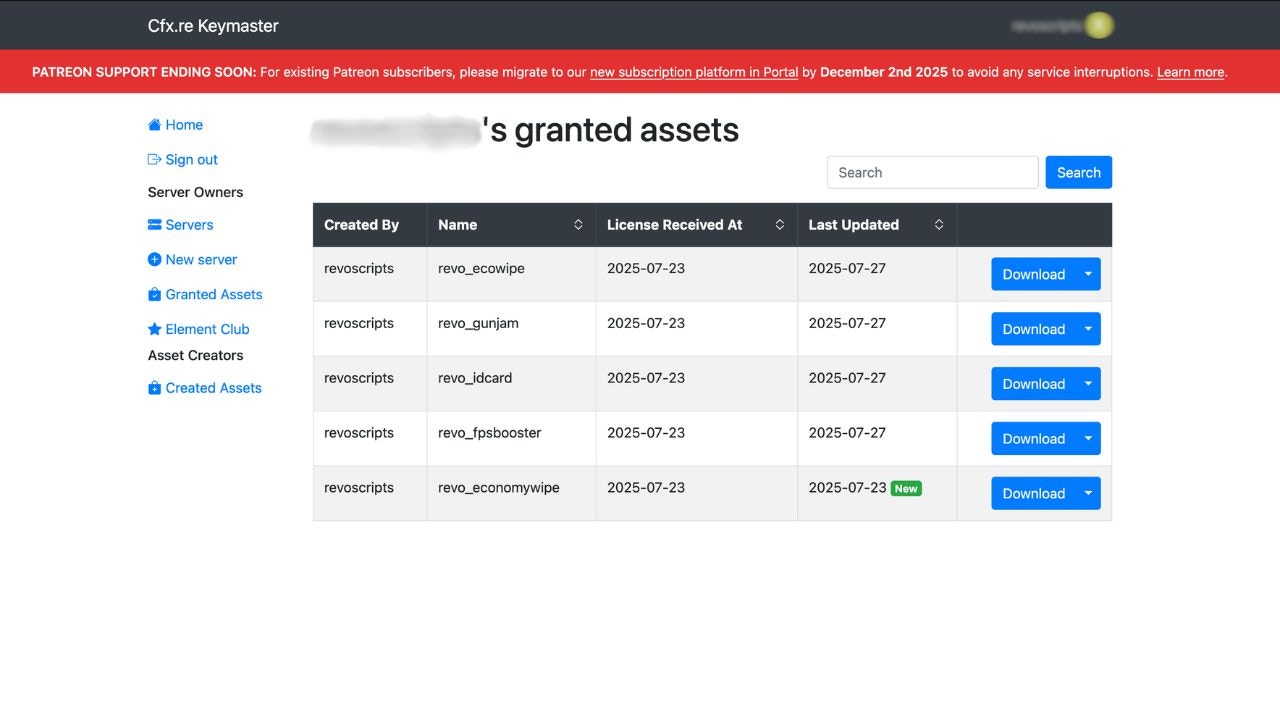 Locate Revo Backup in your granted assets and download the latest available bundle.
The latest version will always be available in your asset grant. There's no need to repurchase.
Before replacing the old script, you **MUST** copy these files from your current `revo_backup` folder:
**DO NOT SKIP THIS STEP!** Your backup files and metadata are stored in the script folder. If you don't copy them, you will lose:
* All your backup history
* All your `.sql` backup files
* Backup metadata and labels
1. Navigate to your current `revo_backup` folder in `resources`
2. Copy the following to a safe location (temporary folder):
* `backup_metadata.json` - Contains all backup history and labels
* All `.sql` backup files (e.g., `backup_2024-01-15_12-00-00.sql`)
3. Also backup your `config.lua` if you've made custom changes
You can copy the entire `revo_backup` folder as a backup before proceeding, or just copy the files mentioned above.
1. Unzip the newly downloaded script bundle
2. Open your server directory and navigate to the
Locate Revo Backup in your granted assets and download the latest available bundle.
The latest version will always be available in your asset grant. There's no need to repurchase.
Before replacing the old script, you **MUST** copy these files from your current `revo_backup` folder:
**DO NOT SKIP THIS STEP!** Your backup files and metadata are stored in the script folder. If you don't copy them, you will lose:
* All your backup history
* All your `.sql` backup files
* Backup metadata and labels
1. Navigate to your current `revo_backup` folder in `resources`
2. Copy the following to a safe location (temporary folder):
* `backup_metadata.json` - Contains all backup history and labels
* All `.sql` backup files (e.g., `backup_2024-01-15_12-00-00.sql`)
3. Also backup your `config.lua` if you've made custom changes
You can copy the entire `revo_backup` folder as a backup before proceeding, or just copy the files mentioned above.
1. Unzip the newly downloaded script bundle
2. Open your server directory and navigate to the resources folder
3. Delete the old version of the `revo_backup` folder
4. Move the new script folder into the resources folder
**CRITICAL STEP:** Copy your backup files back into the new script folder:
1. Copy `backup_metadata.json` into the new `revo_backup` folder
2. Copy all your `.sql` backup files into the new `revo_backup` folder
3. If you backed up `config.lua`, restore your custom settings
The new version will recognize your existing backups and continue tracking them properly. Your backup history, labels, and all SQL files will be preserved.
You can either restart your server or refresh the resource using:
```bash theme={null}
refresh
restart revo_backup
```
## Verification
After updating, verify that your backups are intact:
1. **Check Backup Files:** Navigate to `revo_backup` folder and confirm all `.sql` files are present
2. **Check Metadata:** Verify `backup_metadata.json` exists and contains your backup history
3. **Test UI:** Open the backup UI (`/backup` or `F6`) and verify all backups are listed
4. **Verify Labels:** Check that all your backup labels are still visible
If you notice any backups missing after updating, immediately restore from your temporary backup folder. Never delete the temporary backup until you've confirmed everything is working correctly.
Always keep a separate backup of your backup files in a different location (outside the server directory) as an extra safety measure.