> ## Documentation Index
> Fetch the complete documentation index at: https://docs.revoscripts.com/llms.txt
> Use this file to discover all available pages before exploring further.
# How to Update
> Learn how to update Revo Stock Trading to the latest version with version-specific instructions.
**IMPORTANT:** Always backup your current script folder and configuration files before updating. This ensures you can revert if needed.
Keeping Revo Stock Trading up-to-date ensures access to the latest features, improvements, and bug fixes. Follow the version-specific instructions below based on which version you're updating to.
Go to the CFX.re Keymaster Granted Assets and log in using the same CFX account used to purchase the script.
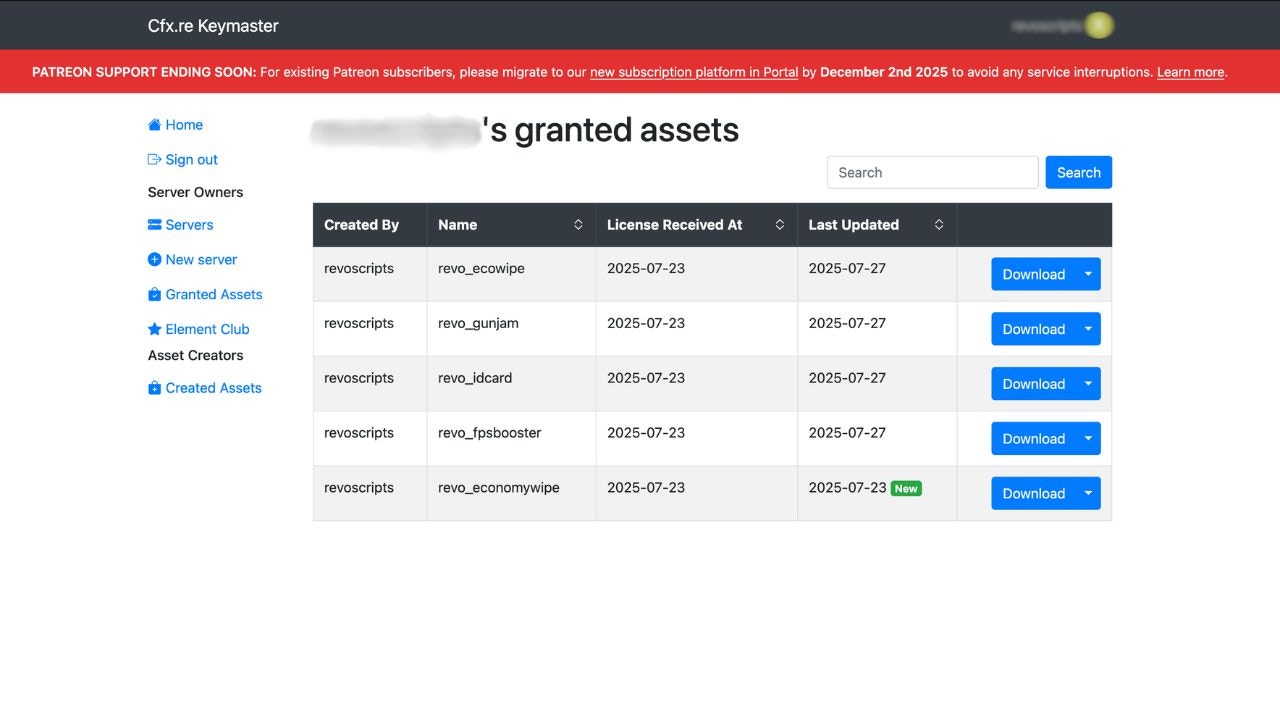 Locate Revo Stock Trading in your granted assets and download the latest available bundle.
The latest version will always be available in your asset grant. There's no need to repurchase.
Before replacing the old script, backup your current configuration:
1. Navigate to your current `revo_stocktrading` folder in `resources`
2. Copy `config.lua` to a safe location (you'll need to restore your custom settings)
3. If you've made any custom modifications to other files, backup those as well
You can copy the entire `revo_stocktrading` folder as a backup before proceeding.
1. Unzip the newly downloaded script bundle
2. Open your server directory and navigate to the
Locate Revo Stock Trading in your granted assets and download the latest available bundle.
The latest version will always be available in your asset grant. There's no need to repurchase.
Before replacing the old script, backup your current configuration:
1. Navigate to your current `revo_stocktrading` folder in `resources`
2. Copy `config.lua` to a safe location (you'll need to restore your custom settings)
3. If you've made any custom modifications to other files, backup those as well
You can copy the entire `revo_stocktrading` folder as a backup before proceeding.
1. Unzip the newly downloaded script bundle
2. Open your server directory and navigate to the resources folder
3. Delete the old version of the `revo_stocktrading` folder
4. Move the new script folder into the resources folder
Copy your backed up `config.lua` into the new `revo_stocktrading` folder to restore your custom settings.
Make sure to review the new `config.lua` for any new configuration options that may have been added in the update.
See the version-specific update instructions below based on which version you're updating to.
You can either restart your server or refresh the resource using:
```bash theme={null}
refresh
restart revo_stocktrading
```
## Version-Specific Update Instructions
### Updating to v1.3
If you're updating to **v1.3** or later, you need to import a new database table:
Import the `trade_daily_limits.sql` file into your database:
1. Locate the `trade_daily_limits.sql` file in the `revo_stocktrading` folder
2. Open your database management tool (phpMyAdmin, HeidiSQL, etc.)
3. Select your database
4. Import the `trade_daily_limits.sql` file
This table is required for the Daily Profit Cap, Daily Withdrawal Limit, and Progressive Tax System features introduced in v1.3.
After importing, verify that the `trade_daily_limits` table exists in your database.
**DO NOT SKIP** the database import step. The script will not function correctly without the `trade_daily_limits` table.
### Updating from v1.2 or Earlier
If you're updating from v1.2 or an earlier version to v1.3:
1. Follow all the general update steps above
2. **MUST** import `trade_daily_limits.sql` as described in the v1.3 instructions above
3. Review the [changelog](/products/stock-trading/changelog) to see what's new
## Verification
After updating, verify that everything is working correctly:
1. **Check Database:** Verify the `trade_daily_limits` table exists (for v1.3+)
2. **Test UI:** Open the trading UI and verify it loads correctly
3. **Test Trading:** Open a test trade to ensure all features work
4. **Check Configuration:** Verify your custom settings in `config.lua` are preserved
If you encounter any issues after updating, check the server console for errors and ensure all the database migrations have been applied.