

1
Visit CFX.re Keymaster
Go to the CFX.re Keymaster Granted Assets and log in using the same CFX account used to purchase the script.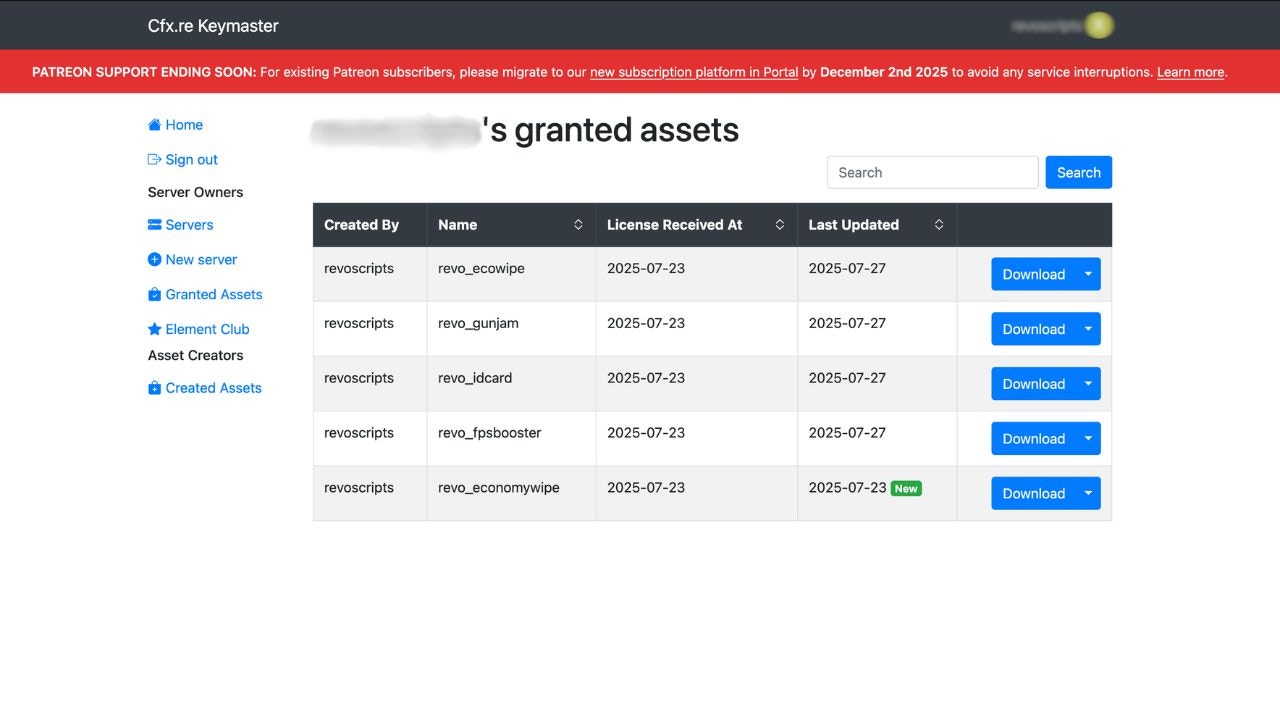
2
Download the Latest Version
Locate Revo Stock Trading in your granted assets and download the latest available bundle.
The latest version will always be available in your asset grant. There’s no need to repurchase.
3
Backup Your Current Script
Before replacing the old script, backup your current configuration:
- Navigate to your current
revo_stocktradingfolder inresources - Copy
config.luato a safe location (you’ll need to restore your custom settings) - If you’ve made any custom modifications to other files, backup those as well
4
Replace the Old Script
- Unzip the newly downloaded script bundle
- Open your server directory and navigate to the
resourcesfolder - Delete the old version of the
revo_stocktradingfolder - Move the new script folder into the
resourcesfolder
5
Restore Your Configuration
Copy your backed up
config.lua into the new revo_stocktrading folder to restore your custom settings.6
Follow Version-Specific Instructions
See the version-specific update instructions below based on which version you’re updating to.
7
Restart or Refresh the Resource
You can either restart your server or refresh the resource using:
Version-Specific Update Instructions
Updating to v1.3
If you’re updating to v1.3 or later, you need to import a new database table:1
Import Database Migration
Import the
trade_daily_limits.sql file into your database:- Locate the
trade_daily_limits.sqlfile in therevo_stocktradingfolder - Open your database management tool (phpMyAdmin, HeidiSQL, etc.)
- Select your database
- Import the
trade_daily_limits.sqlfile
This table is required for the Daily Profit Cap, Daily Withdrawal Limit, and Progressive Tax System features introduced in v1.3.
2
Verify Database Table
After importing, verify that the
trade_daily_limits table exists in your database.Updating from v1.2 or Earlier
If you’re updating from v1.2 or an earlier version to v1.3:- Follow all the general update steps above
- MUST import
trade_daily_limits.sqlas described in the v1.3 instructions above - Review the changelog to see what’s new
Verification
After updating, verify that everything is working correctly:- Check Database: Verify the
trade_daily_limitstable exists (for v1.3+) - Test UI: Open the trading UI and verify it loads correctly
- Test Trading: Open a test trade to ensure all features work
- Check Configuration: Verify your custom settings in
config.luaare preserved